You can add embedded or externally hosted checkouts to a Next.js app using the Whop infrastructure. Learn how to in this guide.
Key takeaways
- Whop's API lets Next.js developers add payments via either an embedded checkout or a hosted redirect, both firing identical webhooks.
- Developers should build in Whop's sandbox first, scripting product and plan creation with the SDK to populate environment variables cleanly.
- A webhook endpoint paired with a WebhookEvent table flips the user's plan flag idempotently, enabling reliable feature gating after purchase.
You can add a checkout and connect a payment system to your Next.js app using the Whop infrastructure by adding a few lines into your web page.
In this guide, we're going to walk you through building a working checkout using a single React component. Then, we'll do a deep dive on building a webhook that tells our app who paid, and a flag on the user row we can gate the features with for SaaS-like apps that need to know which user paid.
You can take a look at our checkout demo to see a basic step by step walkthrough of how the checkout works.
npx create-whop-kit my-app to scaffold a full Next.js SaaS with auth, a pricing page, billing portal, subscription tiers, and a setup wizard pre-wired.It's the CLI in front of the
whopio/whop-saas-starter template. In this guide, we're going to focus on project that already exists.Quick start
Adding an embedded checkout to a Next.js app can be done with a single component. Whop handles the checkout form, payments service, receipts, and order management.
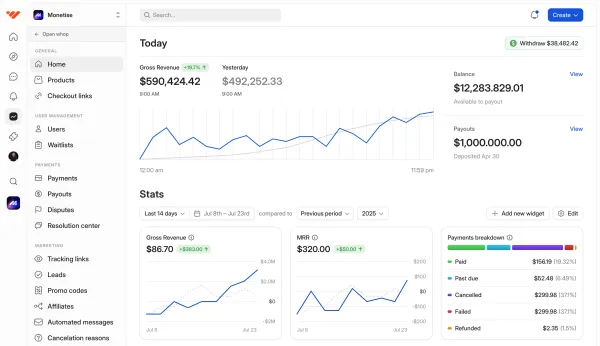
All payments you receive can be managed in the Whop dashboard at Whop.com
Step 1: Creating a plan
The embedded Whop checkout is a customizable component that requires a plan ID. To get it, you need to have a whop and create a plan in it. Follow the steps below to crate one:
- Go to your whop dashboard (create a whop if you don't have one already)
- Click on the Checkout links page and the Create checkout link at the top right
- Customize your checkout link in the editor and hit Create checkout link
- Back in the Checkout links page of your dashboard, click on the context menu button of your checkout link, hover over the Details option, and click on the plan ID to copy it
Step 2: Install the embed package
To make your code render the embedded checkout, install the checkout package using the command below:
npm install @whop/checkoutStep 3: Add the embed into a page
Now, go to the checkout page of your project (the page.tsx file) and add the checkout component:
import { WhopCheckoutEmbed } from "@whop/checkout/react";
export default function Page() {
  return (
    <WhopCheckoutEmbed
      planId="plan_XXXXXXXXX"
      returnUrl="https://yoursite.com/checkout/complete"
    />
  );
}
As you can see in the snippet above, the planId and returnUrl parameters are placeholders. You should replace the plan_XXXXXXXXX and https://yoursite.com/checkout/complete arguments with your actual plan ID you copied in the first step and your website's checkout completion URL.
You can test the checkout you just embedded by using a test card with the card number 4242 4242 4242 4242 (any CVC and future expiry). Once complete, you should be able to see the payment landing on your whop dashboard.
Setting up the integration
The quick setup we looked at above is enough for a working checkout. But if you want to know which user paid so you can change database flags, gate features, or log the purchases in your own system, you need an API key, a webhook, some environment variables, a database client, and a small authentication helper.
First, let's get the sandbox secret. We're going to use the sandbox environment of Whop for the development phase. This allows us to simulate payments without moving real money. We'll look at how you can switch from sandbox to the live Whop environment later in the guide.
Getting the API key
Go to sandbox.whop.com, and create a whop. Once done, visit the Developer page of your whop (on the bottom left) and create a company API key. You can do this by:
- Finding the "API keys" section at the top of the Developer page and clicking on the Create button of the Company API keys
- Give your API key a name and select Admin from the inherit permissions from role dropdown, then click Create
- Once created, copy the company API key (starts with
apik_) and note it down. You'll add it to your environment variables later
(prisma.user.update(...), prisma.webhookEvent.findUnique(...), etc.) for the equivalent in your ORM.Create the product and plans
To let your users complete payments, you need products on Whop, and there are two easy ways to create them:
- Manually creating them in the Whop dashboard
- Using the Whop API to create them Let's break down both.
First option: create them in the dashboard
You can create a product (for one-time payments) and a plan (for recurring payments) in the dashboard by following these steps:
- Go to the Products section of your whop and click Create product at the top right
- In the product editor, give your product a name and a headline
- Select Paid access in the pricing section, leave the payment type as recurring (selected by default), give it a price, and select the payment interval (1 month by default)
This plan will be the recurring payment in your app. Now, let's create the one-time payment by following the exact steps as below, but only selecting one-time as the payment type.
Once you're done, go back to the Products page of your whop, click on the context menu buttons of the product and plan you've created, hover over the Details part, and copy their IDs (starts with prod_)
Second option: use the Whop API
To script the setup of the product and plan, go to scripts/ in your project, and create a file called setup-whop.ts with the code below:
import { config } from "dotenv";
import Whop from "@whop/sdk";

config({ path: ".env.local" });
config();

const apiKey = process.env.WHOP_COMPANY_API_KEY;
const sandbox = process.env.WHOP_SANDBOX === "true";
const explicitCompanyId = process.env.WHOP_COMPANY_ID;

if (!apiKey) {
  console.error("Set WHOP_COMPANY_API_KEY in .env.local before running this script.");
  process.exit(1);
}

const whop = new Whop({
  apiKey,
  ...(sandbox && { baseURL: "https://sandbox-api.whop.com/api/v1" }),
});

async function resolveCompanyId(): Promise<string> {
  if (explicitCompanyId) return explicitCompanyId;
  try {
    const iterator = await whop.companies.list();
    for await (const company of iterator) {
      return (company as { id: string }).id;
    }
  } catch (err) {
    const error = err as { error?: { error?: { message?: string } } };
    const msg = error?.error?.error?.message ?? "";
    if (msg.includes("company:basic:read")) {
      throw new Error(
        "Your Company API Key cannot list companies (missing company:basic:read scope). " +
          "Set WHOP_COMPANY_ID=biz_... (find it in the Whop dashboard URL) and run this again.",
      );
    }
    throw err;
  }
  throw new Error(
    "No company found. Create one in the Whop dashboard before running setup.",
  );
}

async function main() {
  const companyId = await resolveCompanyId();
  console.log(`Using company: ${companyId}\n`);

  const product = await whop.products.create({
    company_id: companyId,
    title: "Pro",
    visibility: "hidden",
  });
  const productId = (product as { id: string }).id;
  console.log(`Created product: ${productId}`);

  const subscription = await whop.plans.create({
    company_id: companyId,
    product_id: productId,
    plan_type: "renewal",
    initial_price: 0,
    renewal_price: 29,
    billing_period: 30,
    currency: "usd",
    visibility: "hidden",
    release_method: "buy_now",
  });
  const subscriptionId = (subscription as { id: string }).id;

  const lifetime = await whop.plans.create({
    company_id: companyId,
    product_id: productId,
    plan_type: "one_time",
    initial_price: 199,
    currency: "usd",
    visibility: "hidden",
    release_method: "buy_now",
  });
  const lifetimeId = (lifetime as { id: string }).id;

  console.log("\nAdd these to your .env.local:");
  console.log(`NEXT_PUBLIC_WHOP_SUBSCRIPTION_PLAN_ID=${subscriptionId}`);
  console.log(`NEXT_PUBLIC_WHOP_LIFETIME_PLAN_ID=${lifetimeId}`);
}

main().catch((err) => {
  console.error(err);
  process.exit(1);
});
Then, use the command below to run the script:
WHOP_COMPANY_API_KEY="apik_..." WHOP_SANDBOX="true" npx tsx scripts/setup-whop.tscompany:basic:read, grab the company ID from the dashboard URL (starts with biz_) and re-run the command with WHOP_COMPANY_ID="biz_..." prepended.Create the webhook
Now, let's create the webhook that will listen to actions from Whop so your app can know when a user completes a payment. Go to the Developer page of your whop again, and under the Webhooks section, click Create webhook, give it a name, set the endpoint URL to https://your-domain.com/api/webhooks/whop, and enable the events below before clicking Save:
payment_succeededpayment_failedmembership_activatedmembership_deactivated
Once created, copy your webhook secret, you'll use it later.
Installing dependencies
To be able to add the checkout to your project, you're going to have to install four packages, including the Whop server SDK:
npm install @whop/sdk @whop/checkout @vercel/functions zodEnvironment variables
Now, let's add all the secrets you've got so far into the environment variables of your project. We're going to use Vercel in this guide. Go to the Environment Variables page in the project settings on Vercel. There, add the environment variables:
| Variable | Example | How to get it |
|---|---|---|
WHOP_COMPANY_API_KEY |
apik_... |
Whop company dashboard → Developer → API Keys → create. |
WHOP_WEBHOOK_SECRET |
... |
Shown when we created the webhook in the previous step. |
WHOP_SANDBOX |
true |
Set manually. true during development; remove or set to false in production. |
NEXT_PUBLIC_WHOP_SUBSCRIPTION_PLAN_ID |
plan_... |
The subscription plan ID (First option: dashboard - Second option: printed by the setup script). |
NEXT_PUBLIC_WHOP_LIFETIME_PLAN_ID |
plan_... |
The one-time plan ID (same source as above). |
NEXT_PUBLIC_APP_URL |
http://localhost:3000 |
Our app's origin. http://localhost:3000 locally; the Vercel production URL once deployed. |
Validate environment variables at startup
In the lib/ folder of your project, create a file called env.ts with the content:
import { z } from "zod";

const envSchema = z.object({
  WHOP_COMPANY_API_KEY: z.string().min(1),
  WHOP_WEBHOOK_SECRET: z.string().min(1),
  WHOP_SANDBOX: z
    .string()
    .optional()
    .transform((v) => v === "true"),
  NEXT_PUBLIC_WHOP_SUBSCRIPTION_PLAN_ID: z.string().startsWith("plan_"),
  NEXT_PUBLIC_WHOP_LIFETIME_PLAN_ID: z.string().startsWith("plan_"),
  NEXT_PUBLIC_APP_URL: z.url(),
});

type Env = z.infer<typeof envSchema>;

let cached: Env | null = null;

function parseAll(): Env {
  if (cached) return cached;
  cached = envSchema.parse({
    WHOP_COMPANY_API_KEY: process.env.WHOP_COMPANY_API_KEY,
    WHOP_WEBHOOK_SECRET: process.env.WHOP_WEBHOOK_SECRET,
    WHOP_SANDBOX: process.env.WHOP_SANDBOX,
    NEXT_PUBLIC_WHOP_SUBSCRIPTION_PLAN_ID:
      process.env.NEXT_PUBLIC_WHOP_SUBSCRIPTION_PLAN_ID,
    NEXT_PUBLIC_WHOP_LIFETIME_PLAN_ID:
      process.env.NEXT_PUBLIC_WHOP_LIFETIME_PLAN_ID,
    NEXT_PUBLIC_APP_URL: process.env.NEXT_PUBLIC_APP_URL,
  });
  return cached;
}

export const env = new Proxy({} as Env, {
  get(_target, prop: string) {
    return parseAll()[prop as keyof Env];
  },
});
SDK client
We're going to use a single shared Whop SDK client. Keep in mind that setting the WHOP_SANDBOX environment variable to true points it at the sandbox environment of Whop.
Go to lib/ and create a file called whop.ts with the content:
import Whop from "@whop/sdk";
import { env } from "@/lib/env";

let _whop: Whop | null = null;

export function getWhop(): Whop {
  if (!_whop) {
    _whop = new Whop({
      apiKey: env.WHOP_COMPANY_API_KEY,
      webhookKey: Buffer.from(env.WHOP_WEBHOOK_SECRET).toString("base64"),
      ...(env.WHOP_SANDBOX && {
        baseURL: "https://sandbox-api.whop.com/api/v1",
      }),
    });
  }
  return _whop;
}
User helper
In the rest of this article, we'll use a requireUser() helper that returns the current user. You should use whatever your existing authentication library exposes, and swap the requireUser() calls in the snippets below for its equivalent.
Create a checkout session
When a user clicks the upgrade button, you create a Whop checkout session, tag it with the user's ID, and redirect to a page that render the embed. Later when the webhook fires, Whop gives us the same ID back. This is how you know which one of your users have paid.
Plan definitions
We're going to have a single source of truth for both plans. The pricing UI and the checkout route will both read from it. To build it, go to lib/ and create a file called plans.ts:
export type PlanKey = "subscription" | "lifetime";

export interface PlanDefinition {
  planKey: PlanKey;
  name: string;
  price: number;
  priceSuffix: string;
  description: string;
  features: readonly string[];
  envVar:
    | "NEXT_PUBLIC_WHOP_SUBSCRIPTION_PLAN_ID"
    | "NEXT_PUBLIC_WHOP_LIFETIME_PLAN_ID";
}

export const PRO_FEATURES = [
  "Unlimited projects",
  "Advanced analytics",
  "Priority support",
  "Team access (up to 5 seats)",
] as const;

export const PLANS = {
  subscription: {
    planKey: "subscription",
    name: "Pro Monthly",
    price: 29,
    priceSuffix: "/mo",
    description: "Month-to-month billing. Cancel anytime.",
    features: PRO_FEATURES,
    envVar: "NEXT_PUBLIC_WHOP_SUBSCRIPTION_PLAN_ID",
  },
  lifetime: {
    planKey: "lifetime",
    name: "Pro Lifetime",
    price: 199,
    priceSuffix: "one-time",
    description: "Pay once. Keep Pro forever.",
    features: PRO_FEATURES,
    envVar: "NEXT_PUBLIC_WHOP_LIFETIME_PLAN_ID",
  },
} as const satisfies Record<PlanKey, PlanDefinition>;

export function planIdFor(key: PlanKey): string {
  const plan = PLANS[key];
  const value = process.env[plan.envVar];
  if (!value) {
    throw new Error(`Missing env var: ${plan.envVar}`);
  }
  return value;
}
The checkout route
We're going to use the same route to handle both plans. It validates the plan field, asks Whop for a session using the user ID, and redirects /checkout with session ID to the URL. Go to app/api/checkout/ and create a file called route.ts:
import { NextResponse, type NextRequest } from "next/server";
import { requireUser } from "@/lib/auth";
import { getWhop } from "@/lib/whop";
import { PLANS, planIdFor, type PlanKey } from "@/lib/plans";
import { env } from "@/lib/env";

function isPlanKey(value: FormDataEntryValue | null): value is PlanKey {
  return value === "subscription" || value === "lifetime";
}

export async function POST(request: NextRequest): Promise<NextResponse> {
  const user = await requireUser();
  const form = await request.formData();
  const plan = form.get("plan");

  if (!isPlanKey(plan)) {
    return NextResponse.json({ error: "Invalid plan" }, { status: 400 });
  }

  const planId = planIdFor(plan);

  const whop = getWhop();
  const config = await whop.checkoutConfigurations.create({
    plan_id: planId,
    mode: "payment",
    redirect_url: `${env.NEXT_PUBLIC_APP_URL}/checkout/complete`,
    metadata: { userId: user.id },
  });

  const sessionId = (config as { id: string }).id;

  const url = new URL("/checkout", env.NEXT_PUBLIC_APP_URL);
  url.searchParams.set("session", sessionId);
  url.searchParams.set("plan", PLANS[plan].planKey);

  return NextResponse.redirect(url, { status: 303 });
}plan: { initial_price, plan_type, currency } to checkoutConfigurations.create instead of a plan_id if you charge variable amounts.To learn more about programmatically charging customers, see the checkout configuration documentation page for more details.
Triggering the checkout
The pricing UI POSTs to /api/checkout with the plan key. The simplest version is a plain form with a hidden plan input:
<form action="/api/checkout" method="POST">
  <input type="hidden" name="plan" value="subscription" />
  <button type="submit">Upgrade to Pro Monthly</button>
</form>
Render the embedded checkout
Now, we're going to build two files: a server-rendered page that reads the query parameters and a client component that mounts the embed iframe.
The page shell
The page re-checks the authentication, validates the query parameters, and redirects to home if either is missing, and renders a plan alongside the embed. Go to app/checkout/ and create a file called page.tsx:
import { redirect } from "next/navigation";
import { PlanSummaryCard } from "@/components/plan-summary-card";
import { WhopCheckout } from "./WhopCheckout";
import { PLANS, type PlanKey } from "@/lib/plans";
import { requireUser } from "@/lib/auth";
import { env } from "@/lib/env";

interface SearchParams {
  session?: string;
  plan?: string;
}

function isPlanKey(value: string | undefined): value is PlanKey {
  return value === "subscription" || value === "lifetime";
}

export default async function CheckoutPage({
  searchParams,
}: {
  searchParams: Promise<SearchParams>;
}) {
  await requireUser();
  const { session, plan } = await searchParams;

  if (!session || !isPlanKey(plan)) redirect("/");

  const planDef = PLANS[plan];

  return (
    <div>
      <PlanSummaryCard
        name={planDef.name}
        price={planDef.price}
        priceSuffix={planDef.priceSuffix}
        features={[...planDef.features]}
      />
      <WhopCheckout
        sessionId={session}
        returnUrl={`${env.NEXT_PUBLIC_APP_URL}/checkout/complete`}
        sandbox={env.WHOP_SANDBOX}
      />
    </div>
  );
}
The client component
The client component mounts the Whop embed and passes through the session ID, return URL, and the sandbox flag we use to indicate that we're working with the sandbox environment for now.
We'll switch this to live environment later. Go to app/checkout/ and create a file called WhopCheckout.tsx:
"use client";

import { WhopCheckoutEmbed } from "@whop/checkout/react";

interface WhopCheckoutProps {
  sessionId: string;
  returnUrl: string;
  sandbox: boolean;
}

export function WhopCheckout({
  sessionId,
  returnUrl,
  sandbox,
}: WhopCheckoutProps) {
  return (
    <WhopCheckoutEmbed
      sessionId={sessionId}
      returnUrl={returnUrl}
      environment={sandbox ? "sandbox" : "production"}
      theme="light"
      themeOptions={{ accentColor: "tomato" }}
      fallback={<CheckoutSkeleton />}
    />
  );
}

function CheckoutSkeleton() {
  return <div className="h-[560px] w-full animate-pulse rounded bg-neutral-100" />;
}
The user fills in the card details inside the iframe, so our app doesn't touch that data at all. The returnUrl is where Whop redirects the user. The sandbox flag mirrors env.WHOP_SANDBOX, so this file doesn't change when we ship to production.
Handle the return URL
After the user pays, Whop redirects the browser to your returnUrl with a ?status=success or ?status=error in the URL. The webhook handles updating your database in the background. The page just needs to render a success or failure message.
The complete page
The page reads ?status from the URL and renders either the success message or an error link.
Go to app/checkout/complete/ and create a file called page.tsx:
import Link from "next/link";
import { requireUser } from "@/lib/auth";
import { PRO_FEATURES } from "@/lib/plans";
interface SearchParams {
status?: string;
}
export default async function CompletePage({
searchParams,
}: {
searchParams: Promise<SearchParams>;
}) {
await requireUser();
const { status } = await searchParams;
if (status === "error") {
return (
<div>
<h1>Payment didn’t go through</h1>
<Link href="/">Back to plans</Link>
</div>
);
}
return (
<div>
<h1>Thanks, payment received</h1>
<p>Your access will be active shortly. Check your email for a receipt.</p>
<ul>
{PRO_FEATURES.map((f) => (
<li key={f}>{f}</li>
))}
</ul>
</div>
);
}Handle the webhook
Whop notifies our app via webhooks when a user action is done. Like when a payment succeeds, a renewal fails, etc.
When one of these webhooks hits our endpoint, we verify it's from Whop, read the data, and find out which user of ours it's about. Then, we update their user.plan accordingly.
Event handlers
We need two handlers, one for new payments, and one for cancellation. Go to lib/ and create a file called webhooks.ts:
import { z } from "zod";
import { prisma } from "@/lib/db";

// Whop's payment webhook payload only guarantees a small set of fields —
// `data.plan.plan_type` is NOT returned on webhooks, only when you
// retrieve the plan separately. We parse defensively and derive the
// plan type from the plan id instead.
const paymentSchema = z.object({
  id: z.string(),
  metadata: z.record(z.string(), z.unknown()).nullish(),
  plan: z.object({ id: z.string() }).optional(),
  billing_reason: z.string().nullish(),
});

const membershipSchema = z.object({
  id: z.string(),
  metadata: z.record(z.string(), z.unknown()).nullish(),
  plan: z.object({ id: z.string() }).optional(),
});

function readUserId(metadata: unknown): string | null {
  if (!metadata || typeof metadata !== "object") return null;
  const value = (metadata as Record<string, unknown>).userId;
  return typeof value === "string" ? value : null;
}

function planTypeFromPlanId(
  planId: string | undefined,
): "subscription" | "lifetime" | null {
  if (!planId) return null;
  if (planId === process.env.NEXT_PUBLIC_WHOP_SUBSCRIPTION_PLAN_ID) {
    return "subscription";
  }
  if (planId === process.env.NEXT_PUBLIC_WHOP_LIFETIME_PLAN_ID) {
    return "lifetime";
  }
  return null;
}

async function alreadyProcessed(eventId: string): Promise<boolean> {
  const existing = await prisma.webhookEvent.findUnique({
    where: { id: eventId },
  });
  return existing !== null;
}

async function markProcessed(eventId: string, type: string): Promise<void> {
  try {
    await prisma.webhookEvent.create({ data: { id: eventId, type } });
  } catch {
  }
}

export async function handlePaymentSucceeded(eventId: string, data: unknown) {
  if (await alreadyProcessed(eventId)) return;

  let payment: z.infer<typeof paymentSchema>;
  try {
    payment = paymentSchema.parse(data);
  } catch (err) {
    console.error("[webhook] payment.succeeded parse failed:", err, "payload:", data);
    return;
  }

  const userId = readUserId(payment.metadata);
  if (!userId) {
    console.error(
      "[webhook] payment.succeeded with no userId metadata",
      payment.id,
    );
    return;
  }

  const planType = planTypeFromPlanId(payment.plan?.id);
  if (!planType) {
    console.error(
      "[webhook] payment.succeeded with unrecognized plan id:",
      payment.plan?.id,
    );
    return;
  }

  try {
    await prisma.user.update({
      where: { id: userId },
      data: { plan: "pro", planType, planSince: new Date() },
    });
  } catch (err) {
    console.error("[webhook] payment.succeeded DB update failed:", err);
    return;
  }

  await markProcessed(eventId, "payment.succeeded");
}

export async function handleMembershipDeactivated(eventId: string, data: unknown) {
  if (await alreadyProcessed(eventId)) return;

  let membership: z.infer<typeof membershipSchema>;
  try {
    membership = membershipSchema.parse(data);
  } catch (err) {
    console.error("[webhook] membership.deactivated parse failed:", err);
    return;
  }

  const userId = readUserId(membership.metadata);
  if (!userId) return;

  try {
    await prisma.user.update({
      where: { id: userId },
      data: { plan: "free", planType: null, planSince: null },
    });
  } catch (err) {
    console.error("[webhook] membership.deactivated DB update failed:", err);
    return;
  }

  await markProcessed(eventId, "membership.deactivated");
}
The route handler
The route receives Whop's POSTs and verifies the signature. If it sees a mismatch, it replies with a 401. On a valid event, replies with 200. Go to app/api/webhooks/whop/ and create a file called route.ts:
import { waitUntil } from "@vercel/functions";
import { NextResponse, type NextRequest } from "next/server";
import { getWhop } from "@/lib/whop";
import {
  handlePaymentSucceeded,
  handleMembershipDeactivated,
} from "@/lib/webhooks";

interface WhopEvent {
  type: string;
  id: string;
  data: Record<string, unknown>;
}

export async function POST(request: NextRequest): Promise<NextResponse> {
  const bodyText = await request.text();
  const headers = Object.fromEntries(request.headers);

  let event: WhopEvent;
  try {
    event = getWhop().webhooks.unwrap(bodyText, {
      headers,
    }) as unknown as WhopEvent;
  } catch (err) {
    console.error("[webhook] signature verification failed:", err);
    return NextResponse.json({ error: "Invalid signature" }, { status: 401 });
  }

  switch (event.type) {
    case "payment.succeeded":
    case "membership.activated":
      waitUntil(handlePaymentSucceeded(event.id, event.data));
      break;
    case "membership.deactivated":
      waitUntil(handleMembershipDeactivated(event.id, event.data));
      break;
    case "payment.failed":
      console.error("[webhook] payment.failed:", event.id);
      break;
    default:
      break;
  }

  return NextResponse.json({ ok: true });
}
Gating paid features
With the webhook keeping user.plan current, gating a page is a three-line helper. Go to lib/ and create a file called access.ts:
import { redirect } from "next/navigation";
import { requireUser } from "@/lib/auth";

export async function requirePro() {
  const user = await requireUser();
  if (user.plan !== "pro") redirect("/?upgrade=1");
  return user;
}payment_succeeded), but the webhook payload's type field uses dots (payment.succeeded). Subscribe with the underscore names in the dashboard, and match the dotted names in your switch statement.Use it in any server component that renders Pro-only content:
import { requirePro } from "@/lib/access";

export default async function ProDashboard() {
  const user = await requirePro();
  return <div>Welcome back, {user.email}</div>;
}
Switching from sandbox to production
As we mentioned, we've been using the sandbox environment of Whop (sandbox.whop.com) throughout the guide. It allows us to simulate payments without moving real money.
To go live, you should transform your project to the live environment (whop.com) let's see what you should do:
- Recreate the plans and products in the production environment - Go to the live environment at whop.com, create a whop if you don't already have one, and follow the steps we documented below to recreate your secret keys, products, and plans
- Create a production webhook - Using the production URL of your project, create a new webhook to get a live secret
- Update your environment variables - Using the new secret keys you got on the live environment, you should go back to your host and update your environment variables like
WHOP_COMPANY_API_KEYandWHOP_WEBHOOK_SECRET - Direct the API to the live environment - Go to your environment variables and set
WHOP_SANDBOXtofalse
Getting paid
When a user completes a payment, the funds get transferred to your company's Whop balance. There are two easy ways to move that money to a bank account: using a Whop hosted dashboard to complete the payouts, or adding an embedded payout component to your project.
| Hosted | Embedded | |
|---|---|---|
| Where the owner manages it | Whop dashboard | Inside our own admin UI |
| Setup | None | Install @whop/embedded-components-react-js |
| KYC + bank linking | Handled by Whop | Handled by Whop (rendered in our UI) |
| Best for | Single-owner project | Teams keeping everything in their own app |
Building a marketplace?
If you're building a marketplace-like project where other people can sign up as creators and get paid, you should use the Whop with connected accounts, which offers hosted and embedded payout portals so each account can manage its own KYC and withdrawals.
If you want to learn more, check out the Whop for platforms webpage and our payments documentation.
Choosing a checkout type
Whop supports two checkout methods for Next.js projects: an embedded checkout that you can integrate into your app, and Whop-hosted checkout pages that redirect users back to your app once the checkout is complete.
Both accept the same metadata, fire the same webhook, and end in the same user.plan = "pro" flip.
| Embedded | Hosted | |
|---|---|---|
| Where it renders | Inside your own project | whop.com/checkout/... |
| User leaves your domain | No | Yes |
| Setup | Server route + iframe component | One redirect or anchor tag |
| Metadata support | Yes | Yes, via checkoutConfigurations.create |
| Brand look | Theme + accent color | Whop-branded |
| Best for | Primary upgrade flow | Email links, experiments, static sites |
Step up your projects with Whop
You now know how to add a checkout to your Next.js project. But that's not the only thing Whop can help you step up your project with. If you have other creators that sign up to your platform and get paid (like a Gumroad or a Substack clone), you can use Whop to create a marketplace where creators publish content, users purchase, and you get a cut.
You can also use the Whop infrastructure to add live chats to your apps, easily handle user authentication with Whop OAuth, integrate private support chats, and much more. If you want to learn more about how Whop can help you, check out our developer documentation.